
The Director's Cut
Three new ways to shape your tale after the storyteller has spoken: restage any scene image with a director's note, edit the narration itself, and cut scenes with a full rewind of your tale's state.
Every tale on LiveTale has two authors: you and the storyteller. Until now, the storyteller had the last word. You could reroll the latest beat or regenerate its image, but if a picture framed the wrong moment, a line of dialog rang false, or a whole scene went sideways three scenes ago, the take was final.
Today you get the director's chair. Three new tools, one for each layer of the tale: the shot, the script, and the cut.
Direct this shot
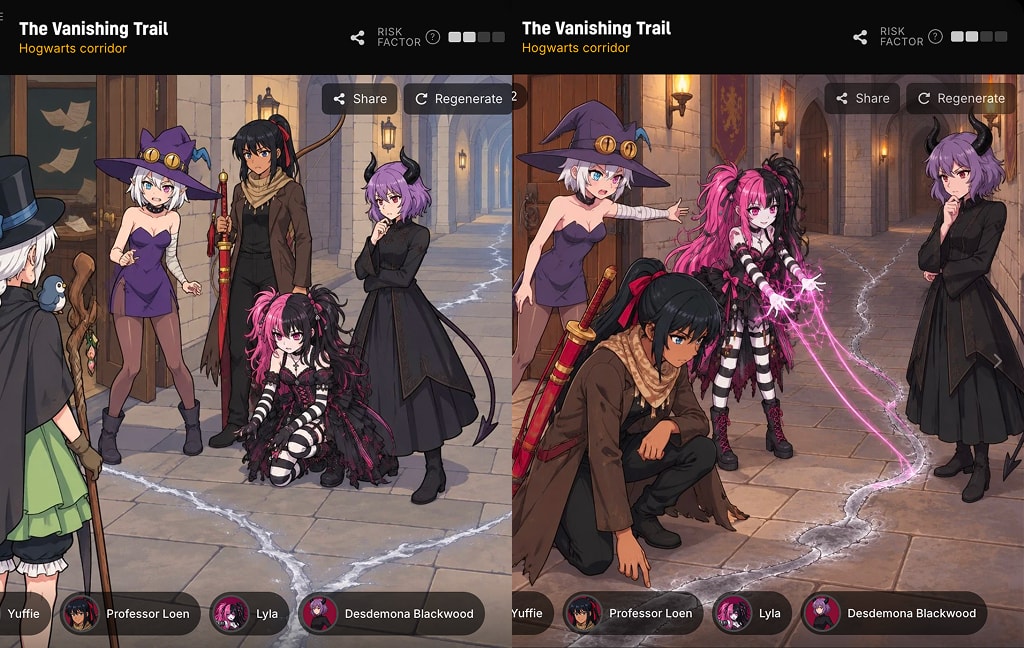
Open the Regenerate menu on any scene image and you will find that Change POV has grown into Direct this shot. You still pick the camera, the storyteller's lens or a view through any character's eyes. But now there is also a note field: tell the cast what to do.
Who stands where. Who is casting, who is pointing, who is hanging back. What the camera should focus on, and what expression a face should carry. Write it the way a director would call it across the set, and the illustration planner restages the shot around your note.
One rule: a redraw can only restage this moment. It cannot change the story. The narration is what happened; your note revises how the image captures it, never what it shows happening. If part of your note would push past the narrated scene, you will see exactly which parts were accepted and which were declined, and why, before a single Page is spent. Nothing is silently dropped. A directed redraw costs half a Page, the same as a POV change always has.
Two quiet upgrades ride along. Every paid redraw now re-plans the staging from scratch, so you will stop getting the same image back with one barely visible detail moved. And if the story changed your hero's costume but the images keep drawing the old one, a note correcting the outfit sticks: it carries into every later image until the story changes clothes again.
Edit the script
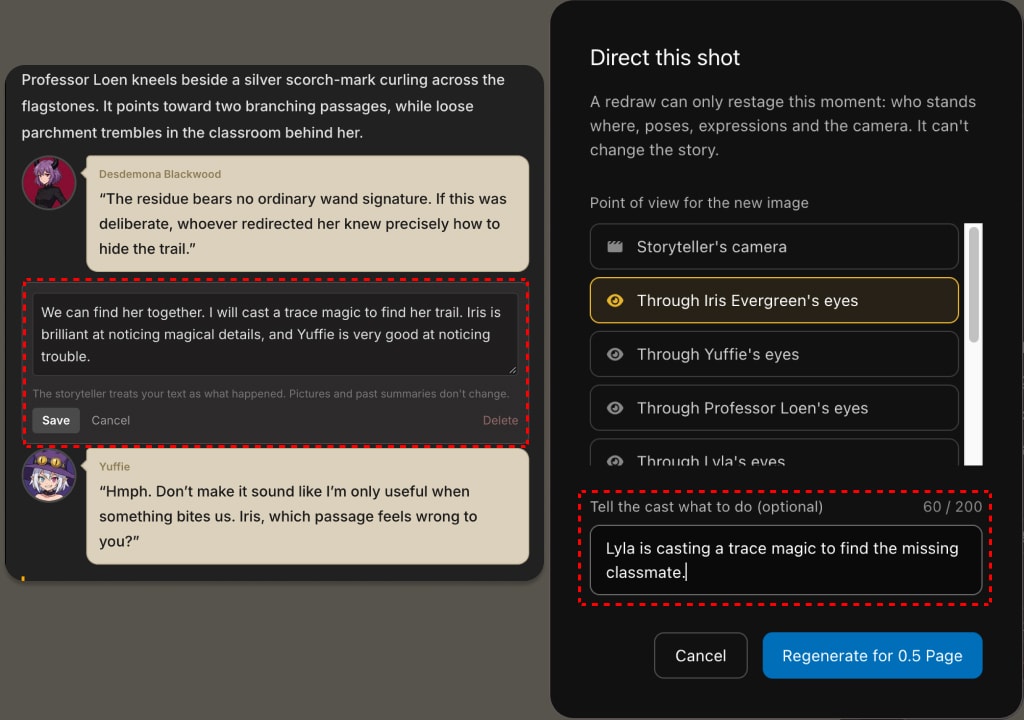
Sometimes the image is fine and the words are the problem. A narrator line that overreaches, a speech bubble that does not sound like the character you know, one sentence that bends the scene the wrong way.
Now you can fix it yourself. Hover over any narration passage, speech bubble, or thought bubble in your tale and a pencil appears. Edit the text, or delete the block entirely. It is free, and from that moment the storyteller treats your words as what happened. This works on any beat, not just the latest one, and it reaches back through the Scene Archive into scenes you finished long ago. While you stay on the page, every edited block keeps its own undo, so you can experiment without fear.
Editing the script does not repaint the picture by itself. If your revision changed what the image should show, the beat offers a redraw for half a Page, and that redraw restages the shot from your edited text as if it were fresh narration. Revise the line, redraw the panel, and the moment finally reads the way you meant it.
One honest warning, and the editor will show it to you too: the narration is the story's memory. Rewrite it boldly and the tale will follow you, for better or worse. It is your tale; we just stopped pretending otherwise.
Cut, rewind, replay
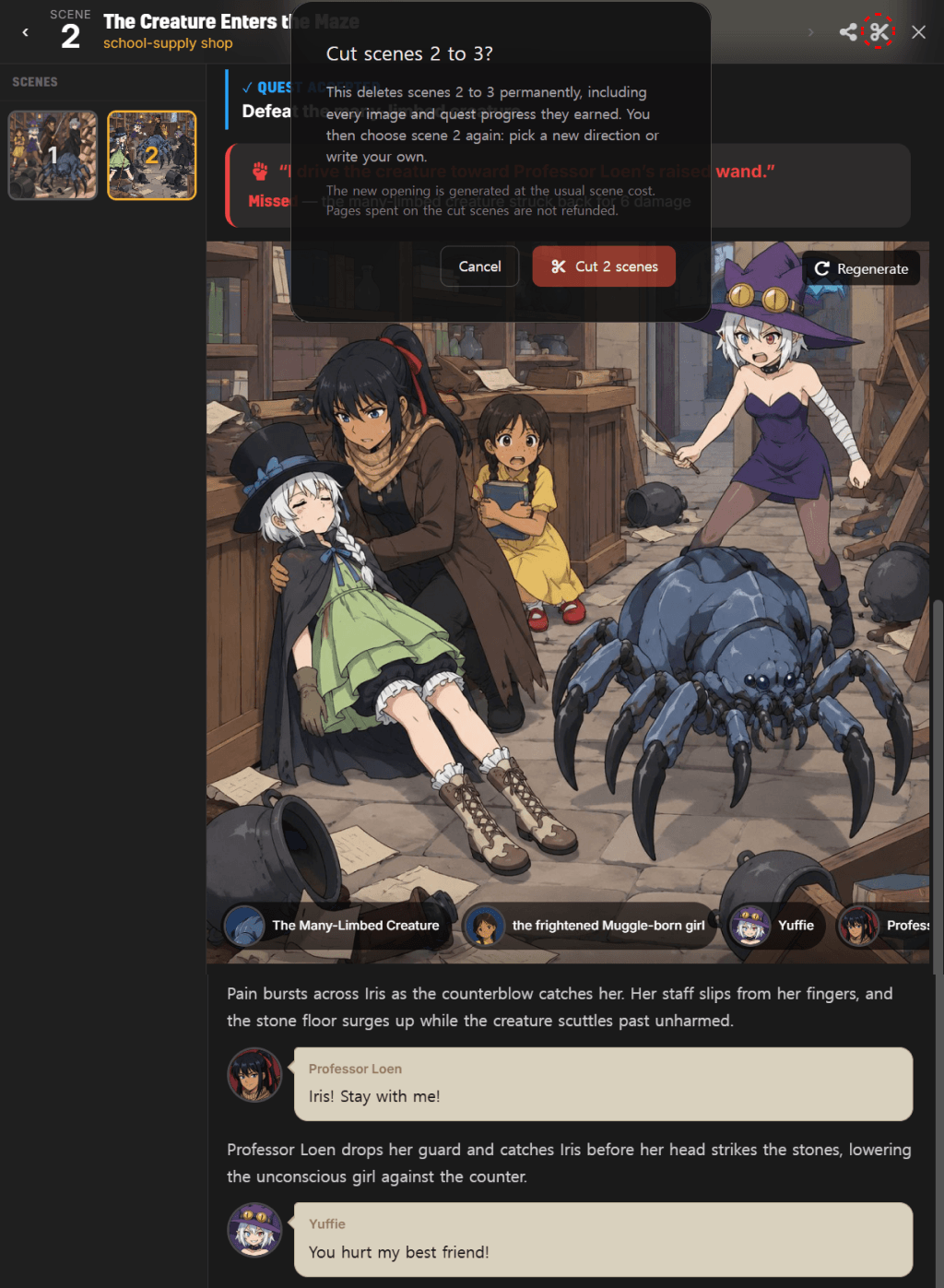
And sometimes the problem is not a shot or a sentence. The story itself took a turn you never wanted, and it happened too many beats ago for a reroll to save you.
The scissors in the Scene Archive have always let you cut scenes. What is new is what happens when you do: the cut is now a true rewind. Cut from scene five and your tale goes back to exactly how it stood the moment before scene five began. Your hero's stats, injuries and items. Quest progress. The story arc. Every character who showed up in the cut scenes, gone as if they had never walked on. Before today, cut scenes left fingerprints; a villain introduced in a cut scene would still haunt your next scene choices. No longer. What you cut stays cut.
Then you take the scene from the top. The tale offers you a fresh set of directions for that scene, or you write your own, and the story continues from a moment you actually liked.
Fair warning before you reach for the scissors: a cut is permanent. The scenes, their images, and the quest progress they earned are deleted, Pages spent on them are not refunded, and the replacement opening costs the usual scene price. The rewind is a creative tool, not an undo button for dice. For a single beat that went wrong, Reroll and Regenerate are still your friends.
Your tale, your cut
A storyteller who improvises a whole world will sometimes miss your intent, and the fix should never be "live with it" or "write to support." Now the fix is a note to the cast, a pencil on the script, or a clean cut and a second take.
The story is still the storyteller's to tell. The cut is yours. Open your tale and direct.